Scanning with no signal
The app keeps working when the venue's signal drops.
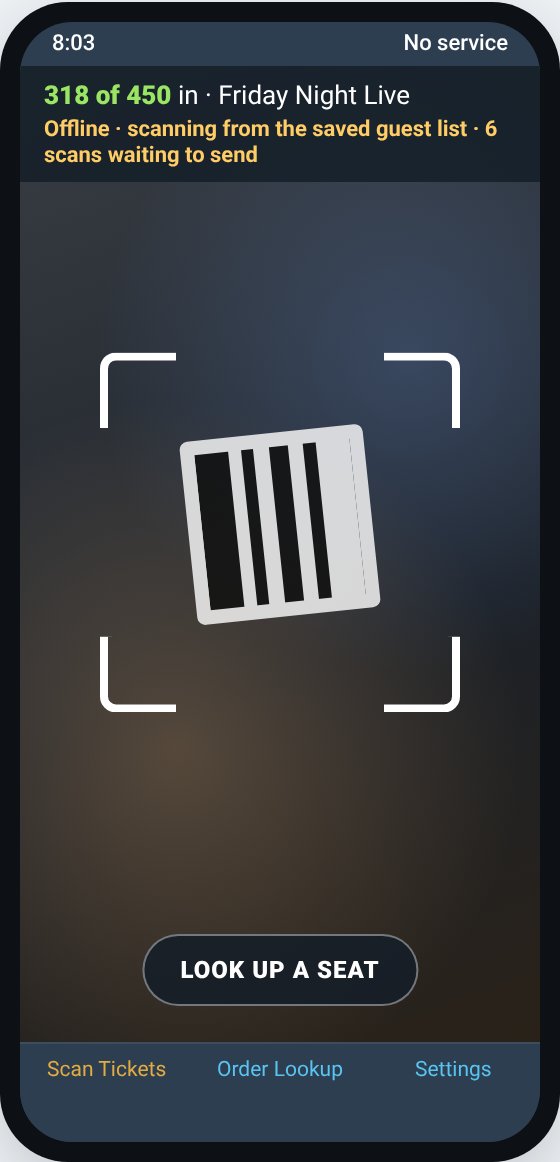
The app saves today's guest list on the phone and refreshes it every few minutes while it has signal. If the signal drops, keep scanning.
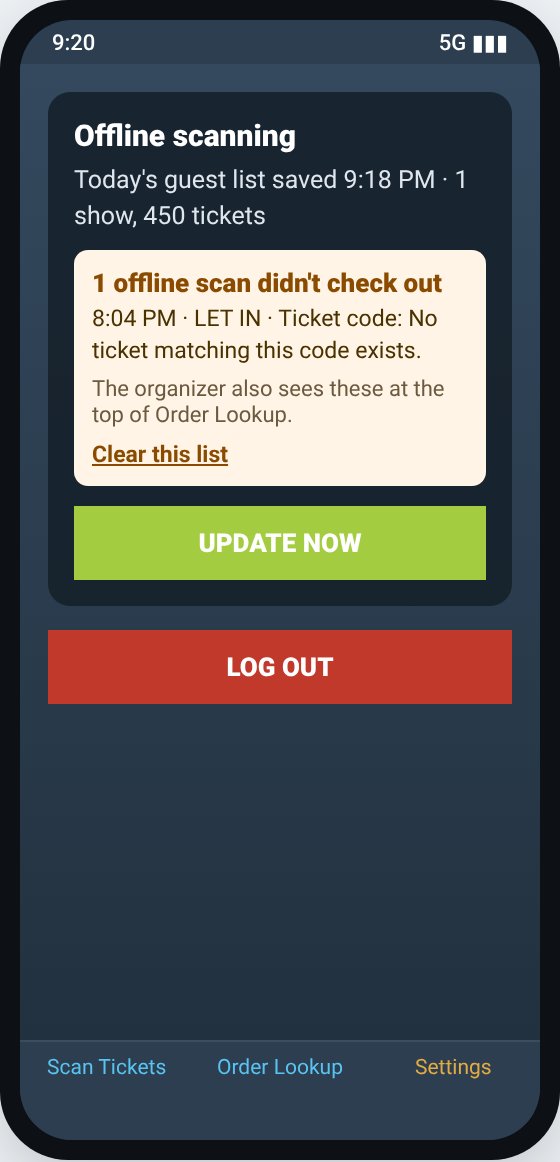
- Before doors open, open the app with signal. To be sure, go to Settings and tap UPDATE NOW. Settings shows when the list was saved and how many tickets are on it.
- If the signal drops, the top bar says Offline · scanning from the saved guest list. Scan as usual. Used tickets still turn red.
- Scans wait on the phone and send to MainGate by themselves when the signal is back, with the time each guest was actually scanned.
A code that isn't on the saved list
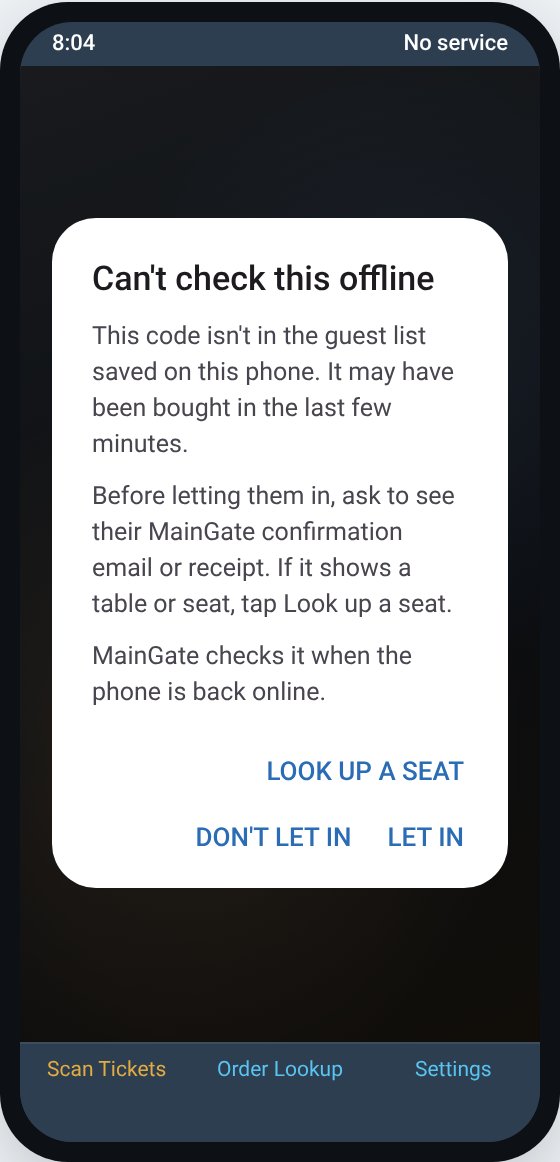
It was most likely bought in the last few minutes. The app asks before letting them in. Ask to see their MainGate confirmation email or receipt, or tap Look up a seat if it shows a table or seat. If you tap Let in, MainGate checks the code when the phone is back online.
If a scan doesn't check out
When MainGate turns down an offline scan (a fake code, or a ticket already used on another phone), it shows in the app under Settings and in a yellow box at the top of Order Lookup for 3 days, with the time and who scanned it.
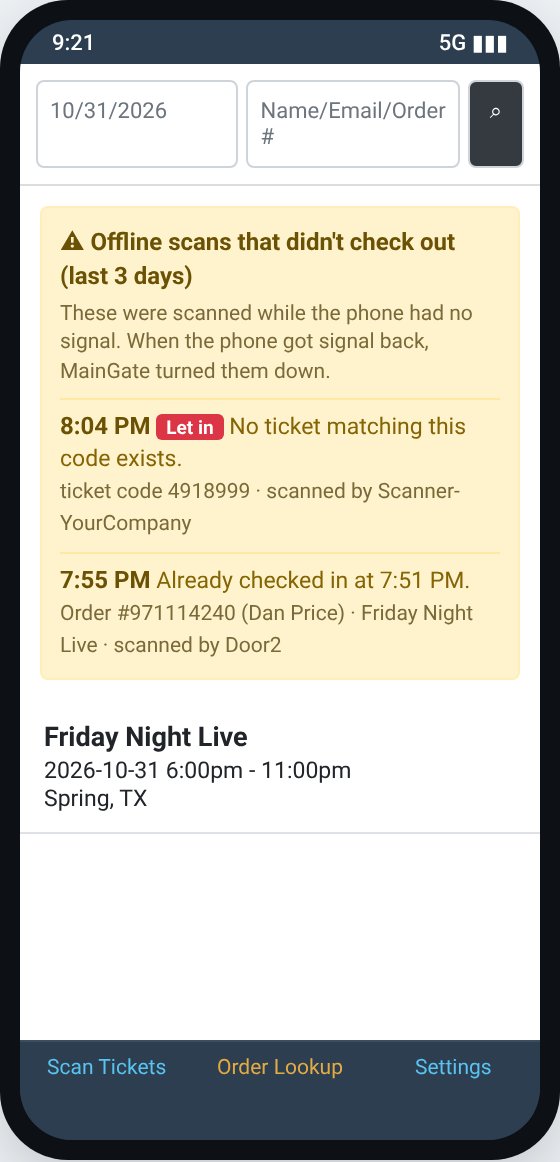
Heads up: Each phone keeps its own saved list. Two phones with no signal could each let in the same ticket. MainGate catches it when they reconnect and lists it as a problem scan.
Tip: Don't log out while scans are waiting to send. The app warns you if you try.
Still stuck? Call 713-303-4094 or send us a message.