Move orders to another date
A show moved: move its buyers to the new date in one step.
- Add the new date first (Add dates and times).
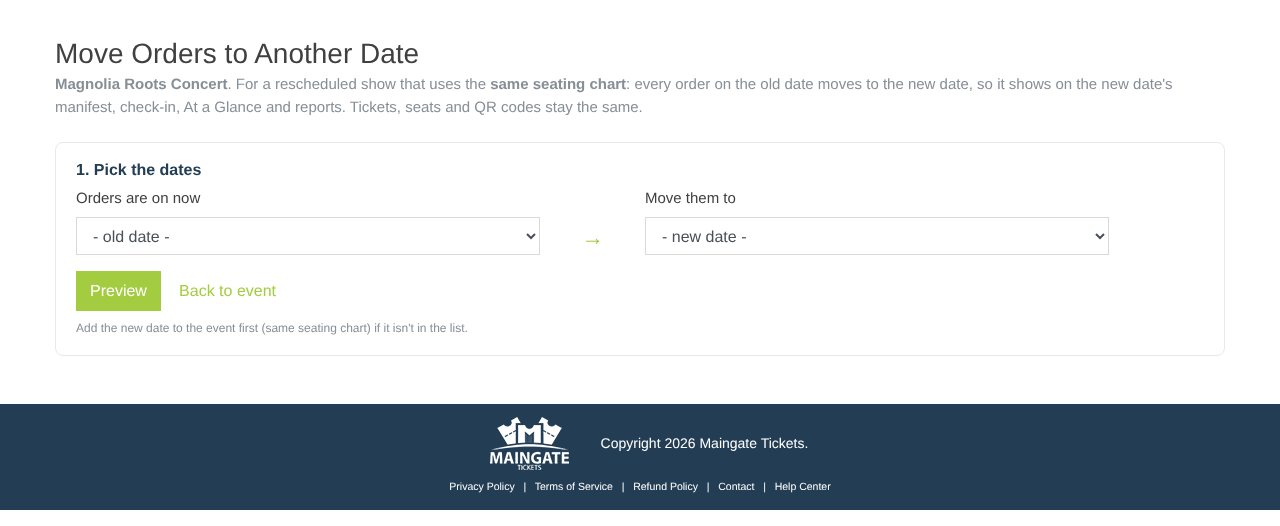
- In Dates & Times, click Move orders to another date.
- Pick Orders are on now (old date) and Move them to (new date), then Preview.
- Check the list. Tick Also re-send each customer their tickets if you want.
- Click Move N orders.
- Click Write the "show has moved" email to tell buyers.
Tickets, seats and QR codes stay the same. To simply change a date's day, see Change a date that already has sales.
Seated shows: if the new date doesn't have a seat map yet, the old date's seat map moves with the orders, so sold seats stay sold. The old date then has no seat map. If the new date already has its own seat map, you'll be asked to clear it first (only if nothing is sold on it).
Who can do this: the main organizer login (Promoter Admin). The "show has moved" email needs email blasts turned on.
Still stuck? Call 713-303-4094 or send us a message.